CSS Filter Generator
Free tool No sign-up
About this generator
Build CSS filter strings visually — blur, brightness, contrast, saturation, hue-rotate, sepia, drop-shadow and more — with a live before/after preview.
Why use CSS filters?
Photoshop in one CSS rule
Brightness, contrast, saturation, hue rotation, sepia, blur — every adjustment a photo editor offers, applied to any DOM element with a single line of CSS. No image processing, no extra requests.
GPU-accelerated effects
Filters run on the compositor thread, so they're fast. Stack multiple filters on hovers, scroll-driven animations, or theme transitions without dropping frames.
Perfect drop-shadows for non-rectangles
box-shadow follows the rectangular box. drop-shadow() follows the alpha channel — so transparent PNGs, SVGs, and clip-path shapes get shadows that match their actual silhouette.
One brand, infinite moods
Build hover states that desaturate, dark-mode previews that invert, hero images that shift hue with the time of day — all from one source asset, controlled entirely in CSS.
How to use this generator
01
Pick a preset or start fresh
Pick a curated look (BW, vintage, cinematic, noir, ghost) as a starting point, or hit none to begin from a blank state and dial in each value yourself.
02
Drag any slider
Brightness, contrast, saturation, sepia, blur, hue-rotate, opacity, grayscale, invert — all standard filter functions. Identity values (100% brightness, 0px blur) are auto-omitted from the output to keep the CSS tidy.
03
Toggle drop-shadow
Add an alpha-aware drop-shadow on top of every other filter. X / Y offset, blur, and an editable colour string — perfect for transparent SVG icons or clip-path silhouettes.
04
Compare and copy
The Compare toggle splits the canvas into Original vs Filtered. When the filtered version looks right, click Copy CSS and paste the rule onto any element.
Filter function reference
| Function | Before | After |
|---|---|---|
blur(8px) | sharp | soft, frosted |
brightness(150%) | normal | 50% lighter |
contrast(150%) | normal | punchier blacks |
grayscale(100%) | colour | fully desaturated |
invert(100%) | normal | colours inverted |
saturate(200%) | normal | vivid pop |
sepia(80%) | normal | warm vintage tone |
hue-rotate(90deg) | red | shifted toward green |
opacity(50%) | opaque | half-transparent |
drop-shadow(0 8px 16px rgba(0,0,0,.3)) | flat | lifted, alpha-aware |
Filter patterns
Hover
/* Hover: desaturate to grey */
.thumb {
  filter: none;
  transition: filter 250ms ease;
}
.thumb:hover {
  filter: grayscale(100%) brightness(0.9);
}
Stacked
/* Cinematic poster look */
.poster {
  filter:
    contrast(130%)
    saturate(130%)
    brightness(95%)
    sepia(5%);
}
Shadow
/* drop-shadow follows alpha — perfect for PNGs / SVGs */
.icon {
  filter: drop-shadow(0 4px 6px rgba(0, 0, 0, 0.15))
          drop-shadow(0 1px 2px rgba(0, 0, 0, 0.10));
}

/* Compare with box-shadow on a transparent SVG —
box-shadow draws around the bounding rect, drop-shadow follows the shape. */ Pro tips
01
Order matters
filter: blur(4px) brightness(120%) does not equal brightness(120%) blur(4px). The browser applies functions left-to-right; a tiny reorder can change the look entirely.
02
drop-shadow vs box-shadow
box-shadow draws around the rectangular box. drop-shadow respects the alpha channel — pick it for transparent images, SVG icons, and any element with a clip-path or border-radius beyond a simple rect.
03
Watch performance on large surfaces
Filters are GPU-friendly but still cost memory at the size they're applied to. Avoid blur(20px) on a fullscreen hero — apply it to a smaller layer or use backdrop-filter on a translucent overlay instead.
04
backdrop-filter for glass UI
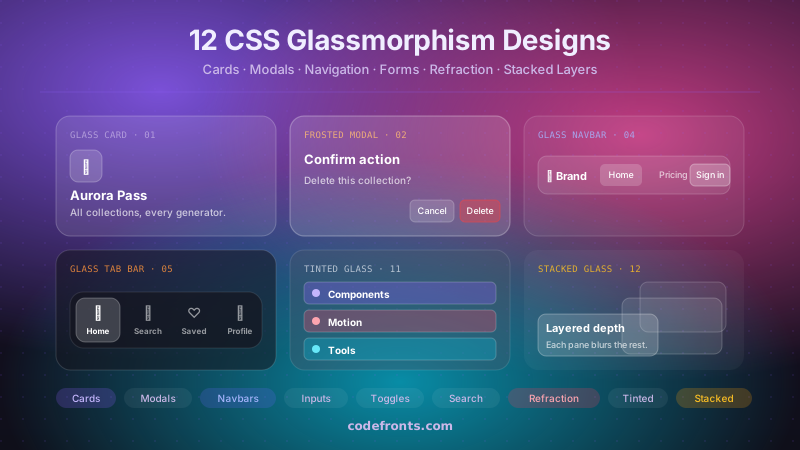
filter blurs the element itself. backdrop-filter blurs whatever sits behind it — the right pick for translucent navbars, modals, and frosted overlays.
See it used in real designs
Browse hand-coded collections that put this tool to work.