CSS Cursor Generator
Free tool No sign-up
Mode
All 36 standard cursors · hover any tile to previewSelected: pointer
General
Links & Status
Selection
Drag & Drop
Resize
Zoom
About this generator
Browse all 36 standard CSS cursors and build custom data-URL cursors from emoji, text badges, or SVG — with a visual hotspot picker and instant export to CSS, Tailwind, styled-components, or SCSS.
Advertisement
Why use this Cursor Generator?
All 36 standard cursors
Every system cursor keyword in one grid, organized by purpose. Hover any tile to preview the cursor live on that tile — no docs jumping required.
Custom cursor builder
Turn an emoji, text badge, or full SVG into a working data-URL cursor. The generator handles the canvas rendering and URL encoding so the output drops straight into CSS.
Visual hotspot picker
Click directly on the cursor preview to set the hotspot — the actual click point. The crosshair shows where clicks register, in real pixel coordinates.
Four export formats
CSS, Tailwind utilities, styled-components, SCSS mixin. Switch the export tab to your stack and copy — no manual conversion.
How to use this generator
01
Pick standard or custom
Standard mode shows all 36 system cursors. Custom mode lets you build a cursor from an emoji, a text badge, or a full SVG.
02
Choose your source
In custom mode, switch between Emoji (any character), Text badge (2-letter colored circle), or SVG (paste any inline SVG markup).
03
Set the hotspot
Click anywhere on the preview canvas to set where clicks register. For a top-left pointer, set 4×4. For a center-click crosshair, set 16×16 (mid of a 32px image).
04
Pick a fallback
If the data URL fails to load (rare but possible), the browser falls back to your chosen system cursor. Use "pointer" for clickable elements.
05
Copy in your stack
Switch the export tab to CSS, Tailwind, styled-components, or SCSS. Copy the snippet and paste it into your project.
Cursor reference
| Cursor | Visual | Use it for |
|---|---|---|
| cursor: pointer | system pointer hand | Clickable interactive element. The default for buttons and links. |
| cursor: text | I-beam | Indicates selectable text. Auto-applied to text elements; rarely needed manually. |
| cursor: not-allowed | circle with slash | Disabled interactive element. Apply to disabled buttons, locked rows, blocked actions. |
| cursor: grab / grabbing | open / closed hand | Draggable element. Use grab for hover, grabbing for active drag (toggle via JS). |
| cursor: zoom-in / out | magnifier with +/− | Image lightbox triggers, map zoom controls. |
| cursor: col-resize / row-resize | double arrow | Resize handles between columns or rows in spreadsheets/tables. |
| cursor: url('...') X Y | custom image + hotspot | Custom cursor. X and Y are the hotspot offset from the top-left of the image (in pixels). |
| cursor: none | no cursor | Hide the cursor entirely. Use for video players, kiosk modes, immersive canvas apps. |
Common cursor patterns
Disabled button cursor
button:disabled,
button[aria-disabled='true'] {
  cursor: not-allowed;
  opacity: 0.5;
}
Draggable element
.draggable {
  cursor: grab;
}
.draggable:active,
.draggable.is-dragging {
  cursor: grabbing;
}
Custom cursor with fallback
.canvas-area {
  cursor: url('/cursors/brush.svg') 4 28, crosshair;
}
Resize handle between panels
.resize-handle {
  cursor: col-resize;
  width: 4px;
  background: transparent;
}
.resize-handle:hover {
  background: rgba(124, 108, 255, 0.4);
} Pro tips
01
Keep custom cursors small
Browsers cap custom cursors at 32×32 (some at 64×64) — anything larger silently falls back. Design tight, with the hotspot visually obvious.
02
Always provide a fallback
The second value in `cursor: url(...) X Y, fallback;` is the system cursor used if your URL fails. Pick one that matches the intent (pointer for buttons, crosshair for canvas).
03
Match cursor to interaction
Cursors are state signals. `pointer` says "click me", `not-allowed` says "this won't work", `grab` says "drag me". Mismatched cursors confuse users faster than any other UI signal.
04
Skip cursors on touch
Touch devices ignore cursor styles entirely (no mouse to style). Don't engineer mobile-specific cursor logic — desktop-only feature, cleanly degrades.
See it used in real designs
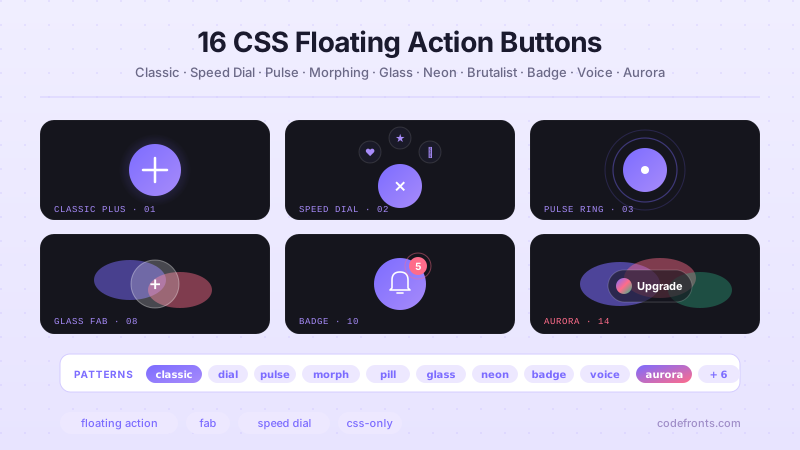
Browse hand-coded collections that put this tool to work.
Related tools
CSS Background Pattern Generator CSS Border Radius Generator CSS Box Shadow Generator CSS Button Generator CSS Clip-Path Generator CSS Filter Generator CSS Glassmorphism Generator CSS Loader Generator CSS Outline & Border Generator CSS Scrollbar Generator CSS Text Shadow Generator CSS Wave Generator Neumorphism Generator