Color Palette Extractor — Image to CSS Variables
Free tool No sign-up
Try a sample
'/%3E%3Crect width='400' height='240' fill='url(%23r2)'/%3E%3Crect width='400' height='240' fill='url(%23r3)'/%3E%3C/svg%3E)
Aurora (sample) · processed locally — your image never leaves your browser
Extracted palette · click any swatch to copy0 colors
Number of colors
5–6 colors works for most palettes. Increase for richly-colored images, decrease for monochromatic ones.
Palette name
Used as the prefix in your CSS variables / Tailwind colors / token names. Letters, numbers, dashes only.
Privacy
Your image is processed entirely in your browser using the canvas API. Nothing is uploaded — no server, no analytics on the image, no third-party calls. Refresh the page and the image is gone.
About this generator
Extract a 3–12 color palette from any image directly in your browser. K-means clustering, real WCAG contrast scores, export to CSS variables, Tailwind, design tokens, SCSS, or JS.
Why use this Color Palette Extractor?
Runs entirely in your browser
Your image never leaves your device — no upload, no server, no third-party calls. The canvas API reads pixels locally and clusters them into a palette.
Five export formats
CSS custom properties, Tailwind theme config, JSON design tokens, SCSS variables, or a JS array. Drop the output straight into your stack.
Real WCAG contrast scores
Each swatch shows contrast against pure white and pure black so you immediately know which colors are safe for text versus accent-only.
Tunable cluster count
Choose 3–12 colors. K-means clustering finds dominant tones; lower for monochromatic art, higher for richly-colored photography.
How to extract a color palette from an image
- 01Drop or upload an imageClick the canvas, drop a file, or pick a sample. Photos, illustrations, screenshots, design comps — anything with pixels works.
- 02Pick the color countDefault 6 covers most palettes. Bump to 8–10 for rich photography, drop to 3–4 for minimal monochrome art.
- 03Inspect the swatchesSorted by population (most common first). Each swatch shows hex, HSL, and contrast ratio against pure white and pure black.
- 04Name the paletteSets the variable prefix in your output: --color-{name}-1, brand-100, $brand-1 — pick something semantic like "primary" or "ocean".
- 05Export and copySwitch tabs to CSS, Tailwind, design tokens, SCSS, or JS. Hit copy. Paste into your project. Zero conversion needed.
How extraction works
| Stage | Detail | Why |
|---|---|---|
| k-means clustering | 8 iterations | Standard unsupervised algorithm. Pixels are grouped by RGB distance; centroids re-average until stable. |
| pixel sampling | ~10,000 max | Images are downscaled and sub-sampled to keep extraction under 200ms even on phones. |
| transparency | alpha < 128 skipped | Transparent pixels are excluded so PNGs with transparency don't pollute the palette with background bleed. |
| WCAG contrast | against #fff & #000 | Each swatch shows AA target (4.5:1) feasibility for text use. Above 4.5 = safe text color. |
| sort order | by population | Most-common colors appear first. The first swatch is your dominant tone — usually the right primary. |
Output patterns by stack
CSS variable usage
:root {
  --color-brand-1: #fbbf24;
  --color-brand-2: #f97316;
  --color-brand-3: #db2777;
}

.button {
  background: var(--color-brand-1);
  color: var(--color-brand-3);
}
Tailwind config (drop into theme.extend.colors)
colors: {
  brand: {
    100: '#fbbf24',
    200: '#f97316',
    300: '#db2777',
    /* ... */
  }
}

/* In your component: */
<div className="bg-brand-100 text-brand-300">…</div>
Design tokens (W3C format)
{
  "color": {
    "brand-1": { "value": "#fbbf24", "type": "color" },
    "brand-2": { "value": "#f97316", "type": "color" }
  }
}

/* Compatible with Style Dictionary, Theo, Tokens Studio */ Pro tips
01
Refine, don't accept blindly
The first extraction is a starting point. The 7th color from a sunset photo might be a JPEG artifact, not a "real" brand color. Trim the palette to 4-5 intentional choices.
02
Crop first for sharper results
A landscape photo with 70% sky will return mostly blues. Crop to the subject before extracting if you want the FOREGROUND palette, not the dominant region.
03
Check contrast before naming roles
Just because a color is dominant doesn't mean it's usable as text. The contrast badges (vs white/black) tell you which colors are accent-only versus text-safe.
04
Photos beat solid-color art
Real photography has thousands of subtle hues — clustering finds genuinely interesting palettes. Solid-color illustrations return obvious colors you could have eyedropped manually.
See it used in real designs
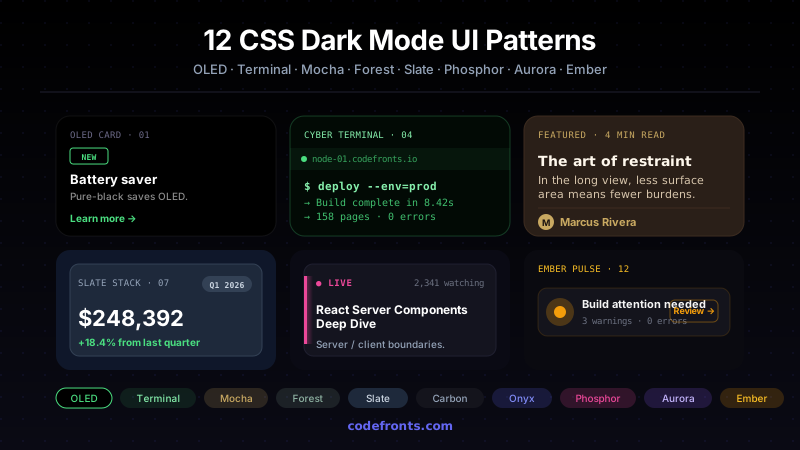
Browse hand-coded collections that put this tool to work.
Related tools
CSS Animation Generator CSS Aspect Ratio Visualizer — 6 Device Viewports CSS Border Radius Generator CSS Box Shadow Generator CSS Clip-Path Generator CSS Cursor Generator CSS Easing Curve Designer — Visual cubic-bezier CSS Filter Generator CSS Flexbox Generator Font Pairing Finder — Curated Heading + Body CSS Glassmorphism Generator CSS Gradient Generator CSS Grid Generator CSS Outline & Border Generator CSS Spacing Scale Builder — Modular Design Tokens CSS Text Shadow Generator CSS Transform Generator Letter-spacing & Line-height Previewer