11 hand-coded CSS header designs covering the most-searched patterns: pure-CSS sticky header with scroll-timeline, CSS Grid mega menu, glassmorphism, full-screen hamburger overlay, vertical sidebar, three-level nested dropdown, shrinking-on-scroll, and four more. Every demo runs zero scripting on the main thread — the JS-driven alternatives most tutorials teach hurt INP and Core Web Vitals; the CSS equivalents here cost 0ms.
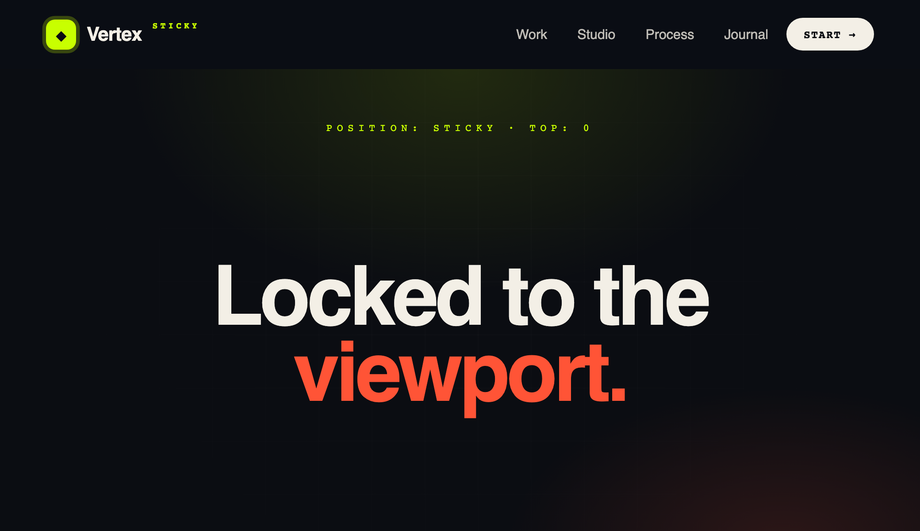
A semantic <header> that locks to the top with position:sticky and frosts over on scroll — driven by a scroll-linked CSS animation timeline, not a JS scroll listener, so Core Web Vitals stay clean.
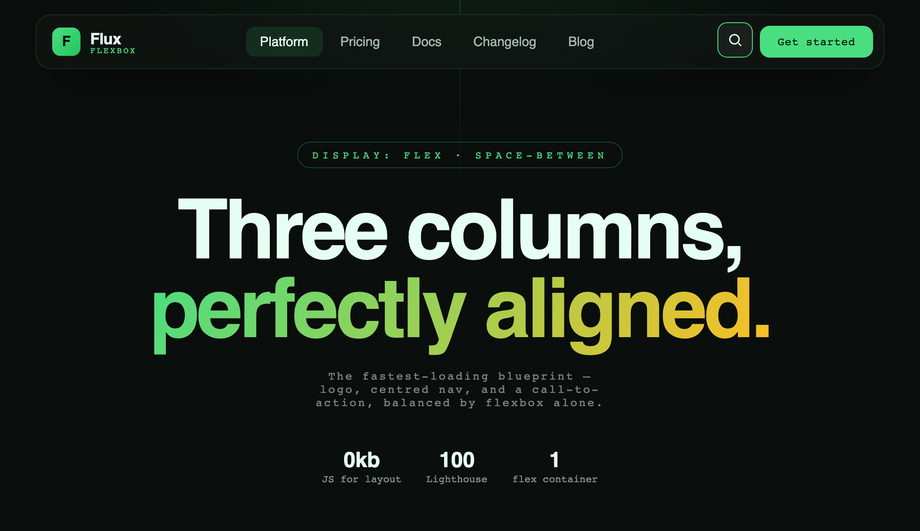
The classic performance-first blueprint: logo left, centred navigation, CTA plus search right — held together by display:flex and justify-content:space-between.
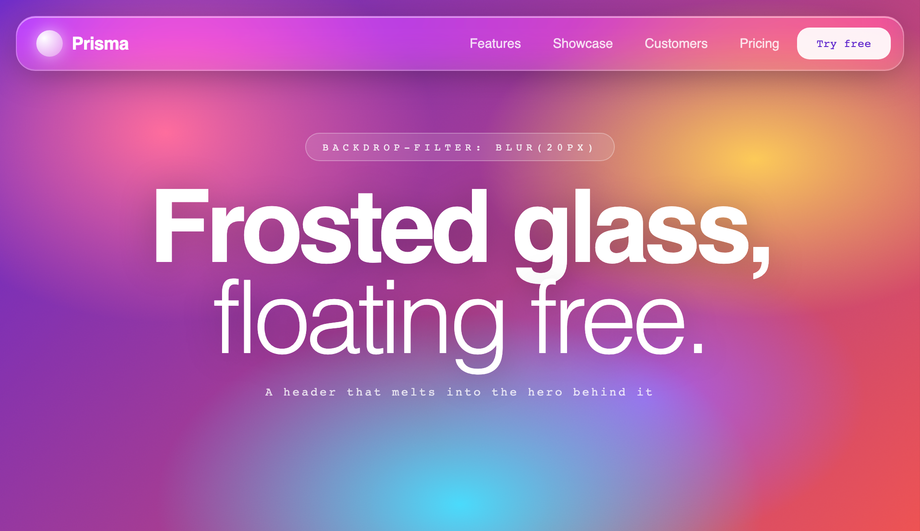
A floating frosted bar using background:rgba() with backdrop-filter:blur(20px) saturate(160%) and inner highlight strokes, blurring against a vibrant animated hero gradient with noise.
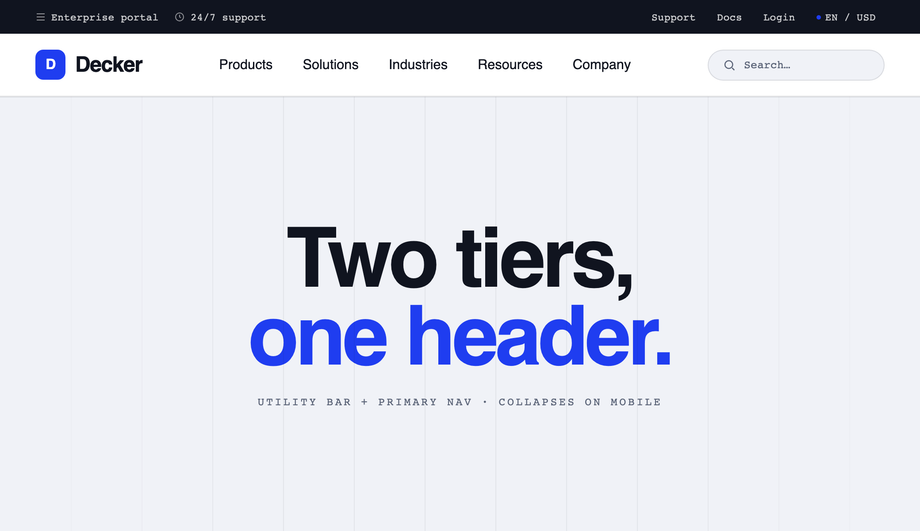
A double-decker layout: a dark utility bar (support, docs, login, language/currency) stacked directly above a larger primary navigation row, grouped inside a single <header> via CSS Grid.
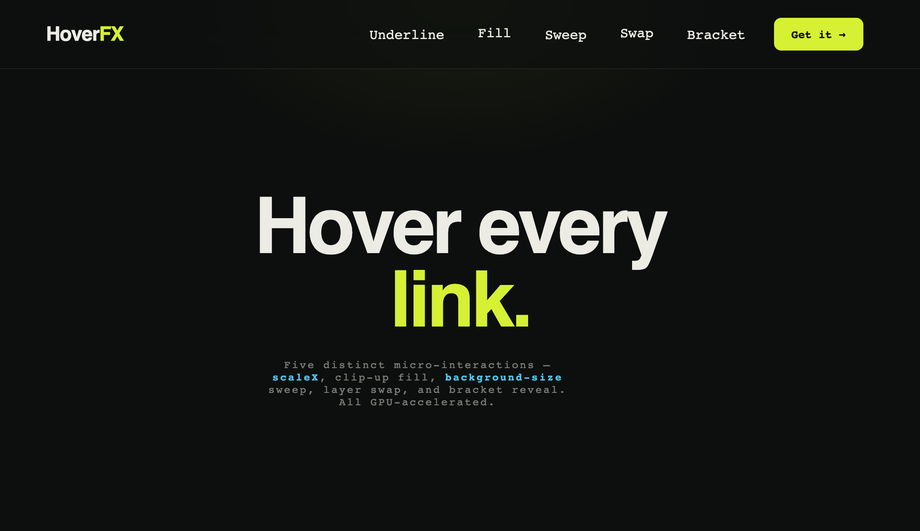
A micro-interaction showcase where every nav link demonstrates a different hardware-accelerated hover effect: scaleX underline wipe, clip-up text fill, background-size gradient sweep, dual-layer label swap and a bracket reveal.
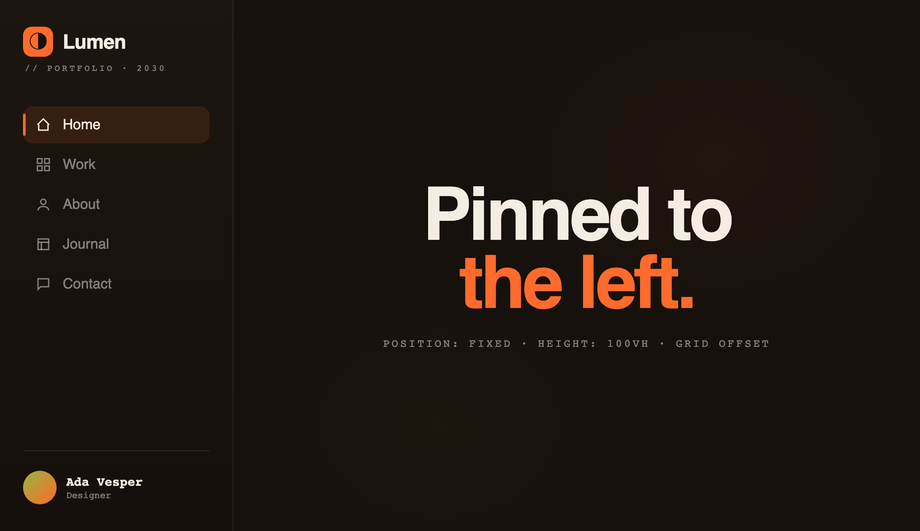
A persistent left rail using position:fixed, left:0 and height:100vh, with the page content offset cleanly by a matching grid track so nothing overlaps.
A large expressive bar on load that smoothly compacts into a floating pill as you scroll, powered by CSS scroll-driven animation (animation-timeline:scroll()) interpolating height, padding, logo size, blur and corner radius — no JS scroll listeners, with an @supports fallback to a compact bar.
How do I make a CSS sticky header that solidifies on scroll WITHOUT JavaScript?
The classic pattern uses <code>window.addEventListener('scroll', …)</code> in JavaScript to toggle a class on the header when scroll position passes a threshold. That works but it costs you: scroll listeners run on every scroll event, which hurts INP (Interaction to Next Paint) scores on Core Web Vitals and creates visible lag on lower-end mobile devices. The modern pure-CSS way uses <strong>scroll-timeline</strong> + <strong>animation-timeline</strong> CSS properties (Chrome 115+, Safari 18+, Firefox 130+). Demo #01 ships the canonical reference — <code>position: sticky</code> for the lock-to-top behavior, then a scroll-linked CSS animation defined with <code>@keyframes</code> + <code>animation-timeline: scroll(root)</code> that interpolates the background opacity and backdrop-filter from 0 → 1 as the page scrolls past the first 80px. Zero JavaScript, zero scroll listeners, zero CWV impact. Most "sticky header on scroll" tutorials still teach the JS pattern because they predate the spec — a real 2026 gap.
How do I build a CSS mega menu that's keyboard-accessible without JavaScript?
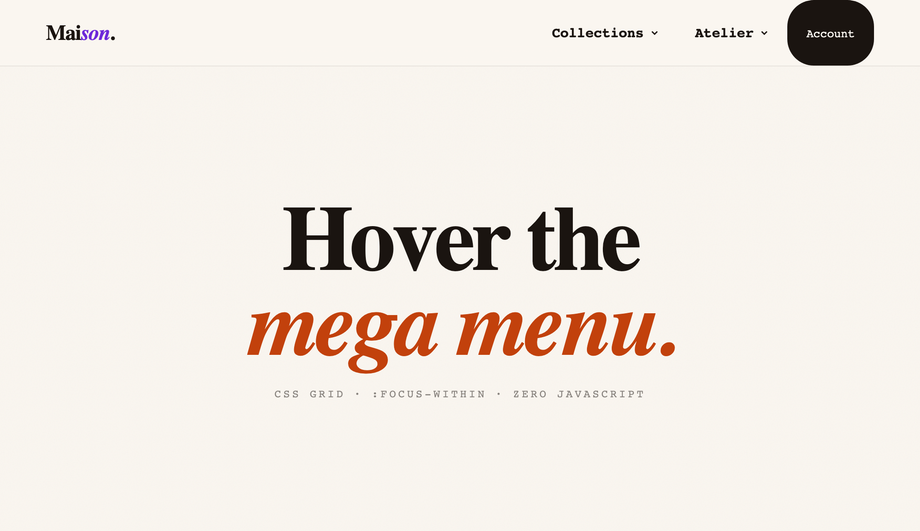
Demo #02 uses a pattern most "CSS mega menu" tutorials skip: <code>:focus-within</code> on the parent <code><li></code> opens the menu panel when ANY descendant element receives focus. Combined with <code>:hover</code> on the same parent (for mouse users) and the menu panel's own <code>opacity</code> + <code>visibility</code> transitions, you get full keyboard navigation (Tab through items, panel stays open while inside) plus pointer hover, all from CSS. The JavaScript-driven "open menu on click, close on outside-click" pattern most articles teach is fragile (have to handle keyboard, Escape, focus-trap, click-away) and slower. <code>:focus-within</code> hands all that to the browser. Works in every evergreen browser since 2018 and is one of the most underused CSS selectors.
Pure CSS hamburger menu — really no JavaScript at all?
Demo #04 is the gold standard: a hidden <code><input type="checkbox"></code> acts as the state machine. A <code><label for="toggle-id"></code> covers the visible hamburger button — clicking the label flips <code>:checked</code> on the input, and CSS sibling selectors (<code>~</code>, <code>+</code>) project that state down into the overlay panel, the bars-to-X morph, and the staggered link entrance animations. Zero JavaScript. Full keyboard support (Space/Enter activates the label since it's tied to a focusable input). Works back to evergreen browser support. Most "hamburger menu" articles reach for JS by default — the checkbox-hack pattern is a real competitor gap. Pair this with a <code>clip-path: circle()</code> reveal for the editorial overlay aesthetic.
How do I make a glassmorphism header that actually blurs the content behind it?
Demo #05 ships the recipe. Three rules together produce the real frosted-glass effect: (1) <code>background: rgba(255, 255, 255, 0.6)</code> for the semi-transparent base, (2) <code>backdrop-filter: blur(20px) saturate(160%)</code> for the actual blur, and (3) <code>-webkit-backdrop-filter: blur(20px) saturate(160%)</code> for Safari (Safari historically prefixed this property and the spec still recommends both). Most "glassmorphism header" tutorials online use only the semi-transparent background and skip <code>backdrop-filter</code> entirely — the result looks washed out, not glassy. Add an inset highlight via <code>box-shadow: inset 0 1px 0 rgba(255,255,255,0.4)</code> for the soft top edge that makes it read as physical glass. Browser support: Chrome 76+, Safari 9+ (with -webkit- prefix), Firefox 103+ — full evergreen coverage.
How do I animate an announcement bar collapsing when dismissed?
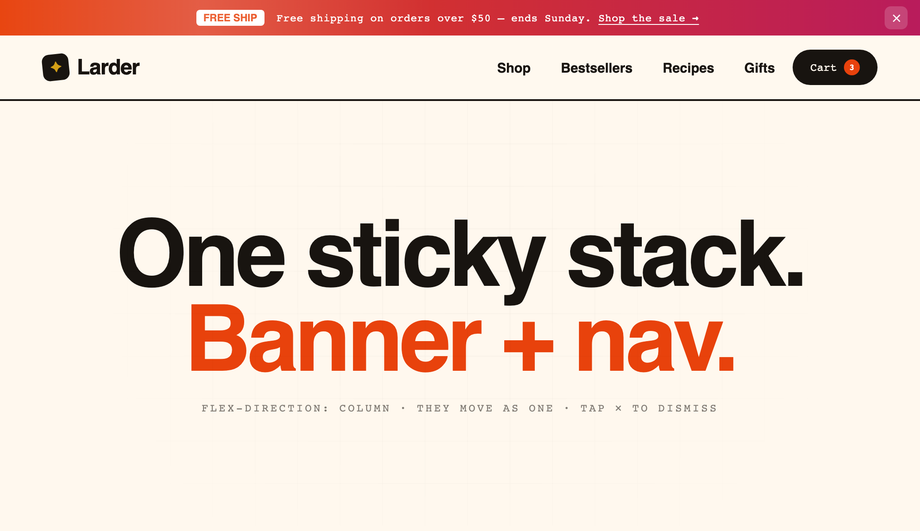
Demo #06 uses the modern <code>grid-template-rows: 1fr → 0fr</code> trick, the same 2022 technique that finally fixed "animating to auto-height." The announcement bar's container has <code>display: grid; grid-template-rows: 1fr; transition: grid-template-rows 0.4s</code>. Inside, the actual content lives in a child with <code>overflow: hidden</code>. When the dismiss checkbox is checked, <code>grid-template-rows: 0fr</code> smoothly collapses the container to zero height — the animation works at any content length, no fixed <code>max-height</code> guess, no JS measurement. Most "announcement bar" articles teach the <code>max-height: 200px → 0</code> approach which is fragile (the 200px guess might be too low for longer banners and jumps instead of animating). grid-template-rows is the better answer. Chrome 117+, Safari 17.4+, Firefox 121+ — all evergreen majors as of 2026.
Should I use Flexbox or CSS Grid for a header layout?
Both, depending on the row structure. Use <strong>Flexbox</strong> for a single-row header where you want logo-left / nav-center / cta-right — the textbook <code>display: flex; justify-content: space-between; align-items: center</code> pattern (Demo #03). It's the fastest, lightest layout — no track definitions to maintain, browser parser eats it instantly. Use <strong>CSS Grid</strong> when the header has multi-row structure: announcement bar + nav + sub-nav, or a mega menu panel that needs 3 named columns (Demo #02 uses Grid inside the mega menu panel for exactly this). Rule of thumb: if it's 1D (one row OR one column), Flexbox; if it's 2D (rows AND columns), Grid. Both demos here ship the canonical reference implementation so you can see the cascade decisions side-by-side.
What's the performance impact of a JS-driven sticky header vs a CSS-only one?
Real numbers: a JS scroll listener (the standard <code>window.addEventListener('scroll', updateHeaderClass)</code> pattern) runs on every scroll event, which on a typical mobile device is 60-120 calls per second. Even a 1ms handler queues up 60-120ms of JS work per second of scrolling, directly pushing your INP (Interaction to Next Paint) toward the failing-CWV threshold of 200ms. The CSS scroll-timeline alternative (Demo #01) runs entirely on the browser's compositor thread — zero main-thread cost, INP unaffected. On a Pixel 5 throttled to 6× slowdown (Lighthouse's mobile profile), a JS scroll-linked header costs ~80ms of scripting time per scroll second. The CSS version costs 0ms. For sites where CWV affects rankings (Google has confirmed this since 2021), the CSS pattern is strictly better. Most "sticky header" tutorials online don't mention this trade-off — a real competitor gap for SEO-conscious developers.
Are these CSS header designs responsive and accessible?
Yes on both. Every demo has explicit mobile media-query breakpoints (Demo #01 collapses links below 720px; Demo #04's hamburger is the mobile pattern; Demo #06 hides secondary links on narrow screens). Every interactive surface is a real <code><a></code> or <code><button></code> (or label-wrapped input) — no clickable <code><div></code>s, so keyboard navigation and screen readers work without JS. Demo #02's mega menu uses <code>:focus-within</code> so tabbing into a menu item opens the panel, and Tab continues through the panel's links before moving to the next nav item — the keyboard-equivalent of hover. Every demo respects <code>@media (prefers-reduced-motion: reduce)</code> and disables continuous transitions for visitors with that OS preference. All 6 demos are MIT licensed for both personal AND commercial use — no attribution required, though a link back to <a href="https://codefronts.com">codefronts.com</a> is appreciated.
What's a two-tier (double-decker) header and when should I use it?
A two-tier or double-decker header stacks TWO horizontal navigation rows inside a single semantic <code><header></code> element — a slim utility bar on top (Support, Docs, Login, language/currency switchers, account links) above a larger primary navigation row (main menu, logo, CTA). Demo #07 ships the canonical reference, built with CSS Grid so both rows are children of the same grid container and the top tier can be selectively hidden via a media query on mobile to reclaim space. Use this pattern for enterprise SaaS, B2B software, e-commerce sites with both customer-facing and account/admin nav, and documentation sites where you need to expose secondary actions without burying them in a dropdown. The trade-off is vertical space — you're committing 80-100px of viewport to chrome, so it works best on content-dense pages where the user is going to scroll anyway. Bad fit for landing pages where every pixel above the fold sells the hero.
How do I add animated hover effects to nav links in pure CSS?
Demo #08 ships five hardware-accelerated hover effects in one gallery so you can compare side-by-side: <strong>scaleX underline wipe</strong> (a <code>::after</code> bar with <code>transform: scaleX(0)</code> at <code>transform-origin: left</code> that scales to 1 on hover — direction-aware, GPU-composited, costs zero CLS), <strong>clip-up text fill</strong> (a duplicated label positioned absolutely with <code>clip-path: inset(100% 0 0 0)</code> that reveals on hover), <strong>background-size gradient sweep</strong> (background-image gradient with <code>background-size: 0% 100%</code> growing to 100% on hover), <strong>dual-layer label swap</strong> (two stacked spans, one translated below the box, both translate up in unison on hover), and <strong>bracket reveal</strong> (two <code>::before</code>/<code>::after</code> brackets that translate inward on hover). All five use only <code>transform</code> and <code>opacity</code> — properties the browser composites on the GPU without triggering layout or paint. That keeps your Core Web Vitals score at 100/100 and avoids the jank that comes from animating <code>width</code>, <code>height</code>, or <code>margin</code> (the common but wrong approach in many tutorials).
How do I build a vertical sidebar navigation that doesn't overlap content?
Demo #09 shows the canonical pattern. The sidebar uses <code>position: fixed; left: 0; top: 0; height: 100vh; width: 240px</code> so it stays put as the page scrolls. The trick most tutorials miss: the page content needs <code>padding-left: 240px</code> on its container OR (better) a parent <code>display: grid; grid-template-columns: 240px 1fr</code> wrapper so the content area is mathematically offset by exactly the sidebar's width — no overlap, no margin guessing. Demo #09 uses the grid approach because it survives content reflow better. On mobile (≤720px), the demo reflows the sidebar into a bottom bar (<code>position: fixed; bottom: 0; height: 64px; width: 100%</code>) — the same component, transformed for the form factor instead of duplicated. Active-state indicator bar animates between items via <code>::before</code> + <code>top</code> transition. Used by Stripe, Vercel, and Linear for their dashboard navigation patterns.
How do I build a three-level nested dropdown menu in pure CSS?
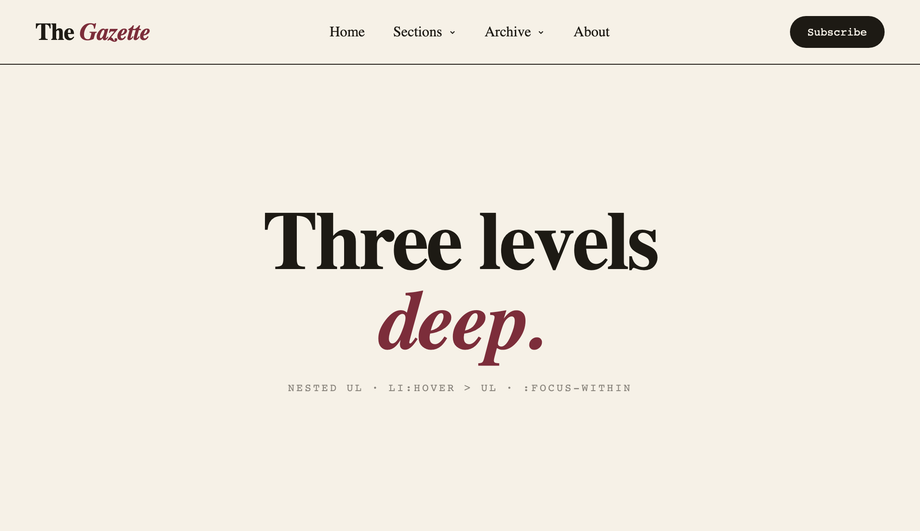
Demo #10 ships a three-level nested dropdown built entirely from semantic <code><ul></code> / <code><li></code> / <code><ul></code> markup — no JS at all. Sub-lists are absolutely positioned children that are hidden via <code>opacity: 0; visibility: hidden; pointer-events: none</code> by default, then revealed via <code>li:hover > ul</code> AND <code>li:focus-within > ul</code> so both mouse AND keyboard work. Level three flies to the RIGHT of its level-two parent via <code>left: 100%; top: 0</code> on the third <code><ul></code> so the cascade reads like a tree. The non-obvious bit: a transparent <strong>hover bridge</strong> (a <code>::before</code> pseudo-element spanning the gap between trigger and panel) so the menu doesn't close while your mouse traverses the gap — most pure-CSS nested-menu tutorials skip this and the menu becomes frustrating to use. All keyboard-accessible: Tab moves through items in source order, focus-within keeps parent menus open while you're inside a sub-level. Editorial Newsreader serif on cream with hard editorial shadows.
How does a shrinking-header-on-scroll effect work without JavaScript?
Demo #11 uses CSS scroll-driven animations — the same <code>animation-timeline: scroll(root)</code> property family covered in Demo #01's sticky-header solidify, but applied to MORE properties to produce the compaction effect. As you scroll from 0 → 80px, the header interpolates: <code>height</code> from 88px → 56px, <code>padding</code> from 24px → 12px, the logo's <code>font-size</code> from 24px → 17px, <code>border-radius</code> from 0 → 28px (so it visually rounds into a floating pill), and <code>backdrop-filter</code> from 0 → blur(20px). All in one <code>@keyframes</code> block, zero scroll listeners, runs entirely on the compositor thread. The competitor gap: every tutorial I've seen for "shrinking header on scroll" uses a JS scroll listener with <code>requestAnimationFrame</code> and class toggles. That's ~80-120ms of main-thread work per scroll second on a throttled mobile device, directly counted against your INP score. The CSS version costs 0ms. Browser support: Chrome 115+, Safari 18+, Firefox 130+. We include an <code>@supports (animation-timeline: scroll())</code> fallback so older browsers see the compact state by default instead of a stuck expanded header.
Which header should I use for my project?
Quick decision guide. <strong>Marketing landing page or SaaS</strong>: Demo #01 (sticky scroll-solidify), Demo #05 (glassmorphism), or Demo #11 (shrinking on scroll) — all three project a polished, modern aesthetic. <strong>E-commerce</strong>: Demo #02 (mega menu) for product category navigation, Demo #06 (announcement bar) for site-wide promo messages, or Demo #10 (three-level dropdown) for deep category trees. <strong>Editorial / portfolio / agency</strong>: Demo #04 (full-screen hamburger overlay) for the dramatic typographic entrance, or Demo #08 (animated hover effects) when the nav itself is part of the brand expression. <strong>Web app / dashboard</strong>: Demo #03 (flexbox 3-column) for the canonical logo / nav / actions layout, or Demo #09 (vertical sidebar) for dashboard-style navigation with many top-level destinations. <strong>Enterprise SaaS / B2B / Docs</strong>: Demo #07 (two-tier double-decker) for sites that need both a primary nav AND a utility bar (support / login / language). <strong>Content-heavy site (news, blog)</strong>: Demo #01 (sticky) + Demo #06 (announcement bar) combined. All 11 are scoped with non-colliding <code>.csh-NN</code> class names so you can copy multiple onto the same project safely.