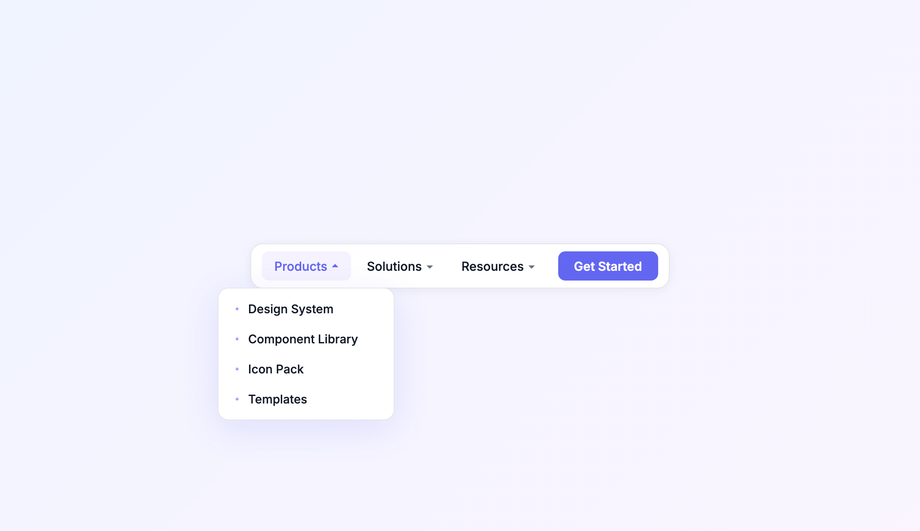
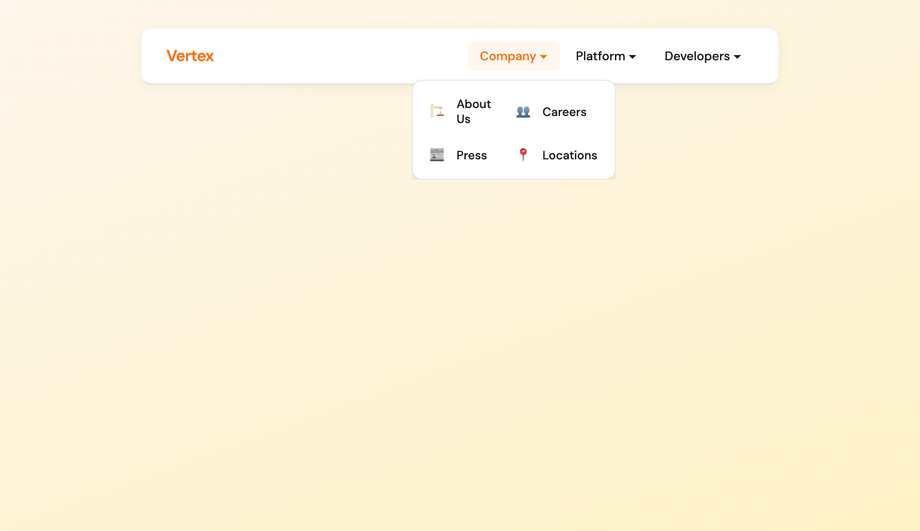
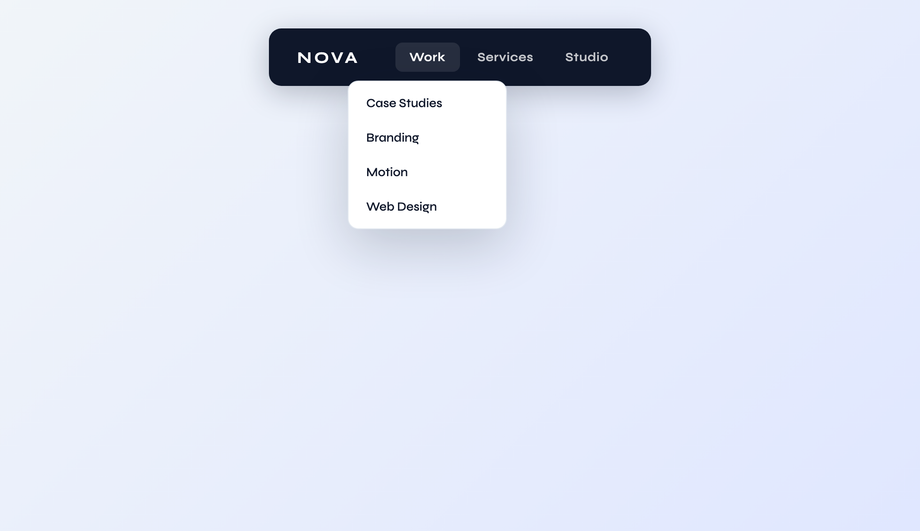
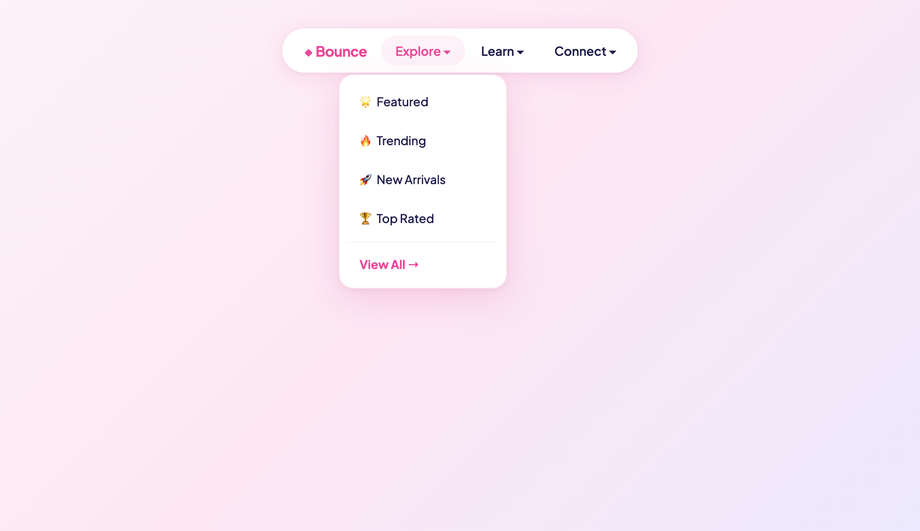
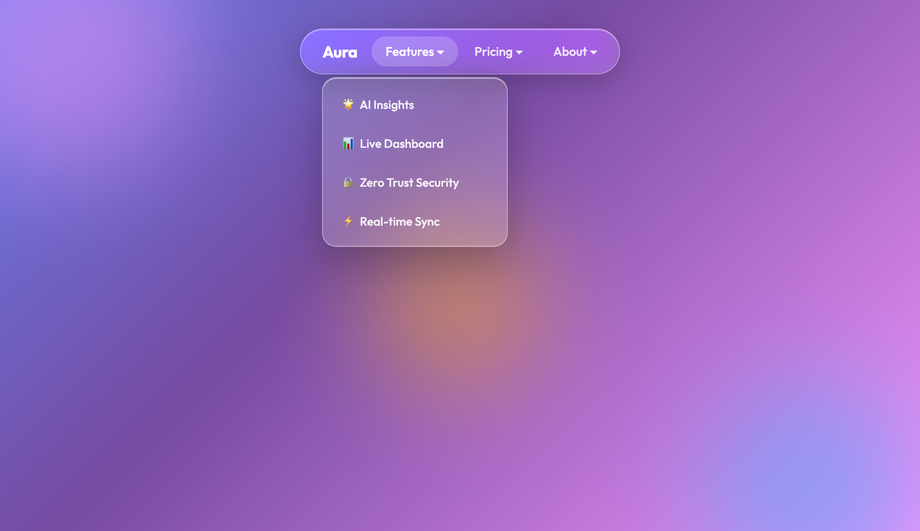
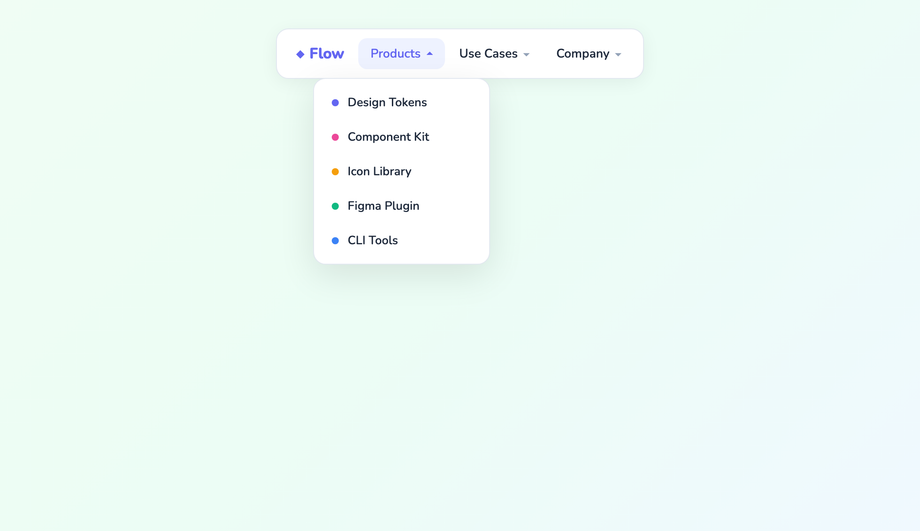
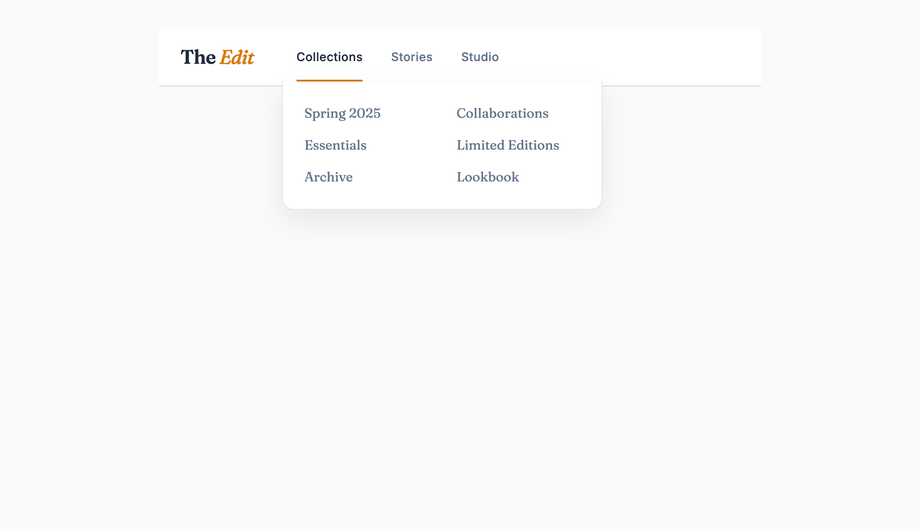
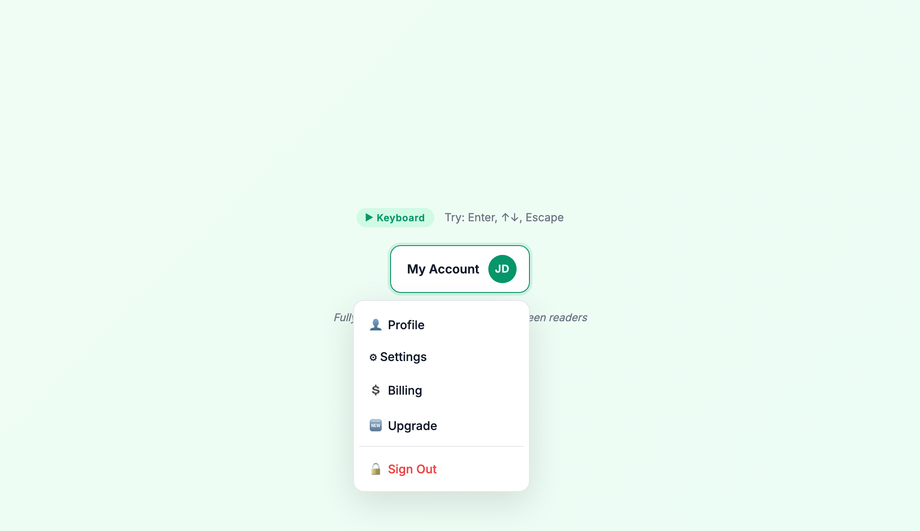
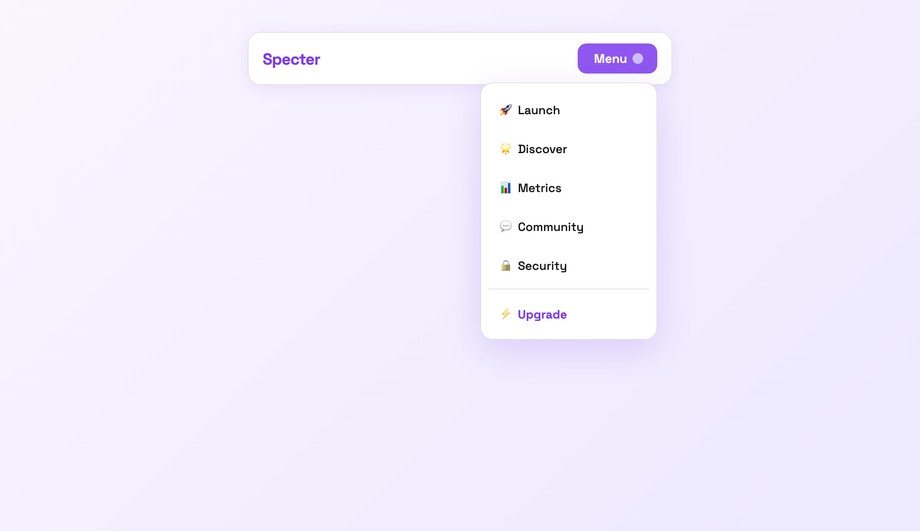
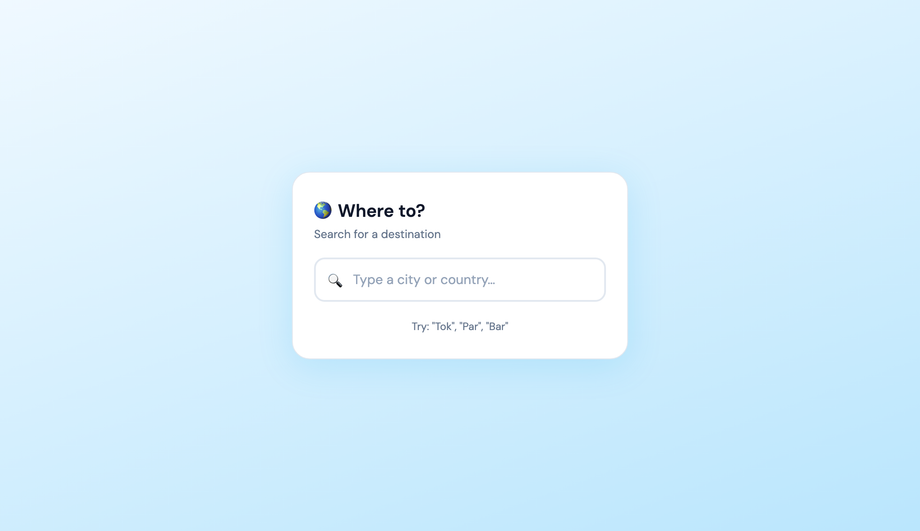
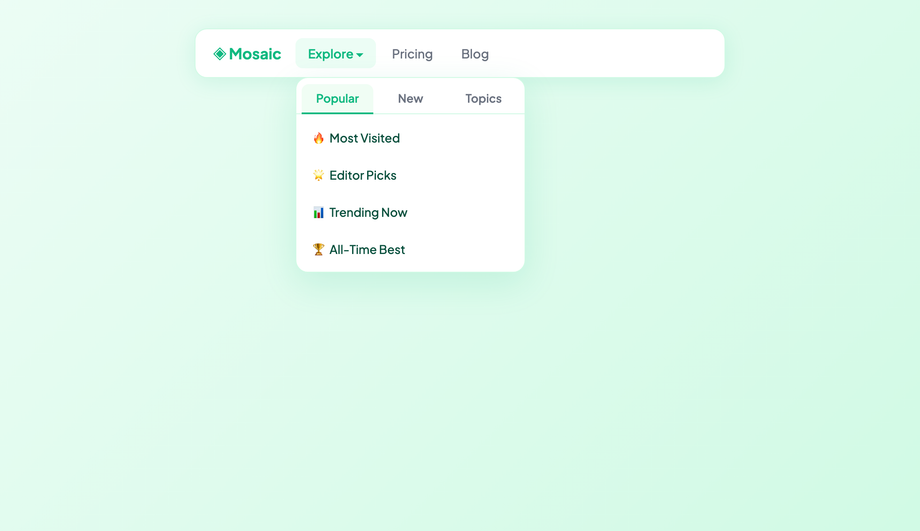
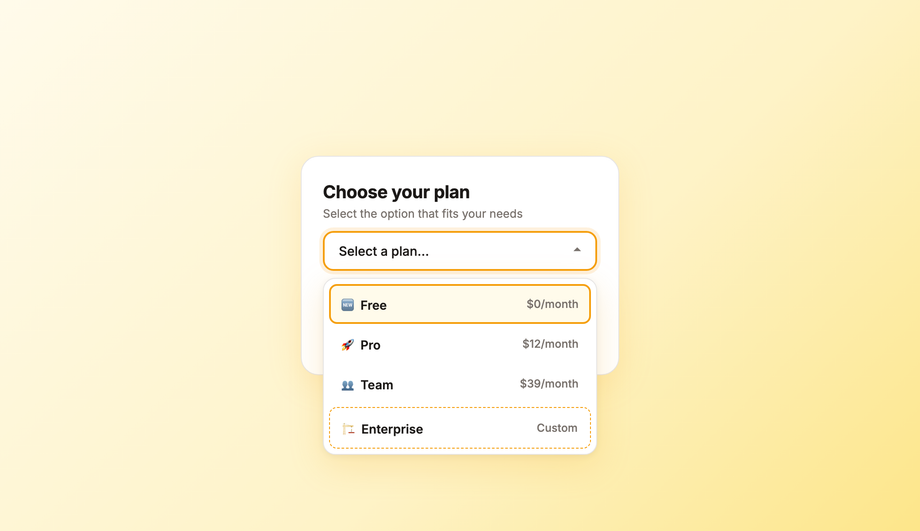
A CSS dropdown menu reveals a hidden panel of links or actions when a user clicks or hovers a trigger — the most-used disclosure pattern in modern web UI. These 22 hand-coded designs cover the full modern dropdown playbook — slide-down fade, clip-path curtain reveal, 3D perspective flip, elastic bounce, glassmorphism float panel, stagger children, mega-menu grid, native <details>/<summary>, checkbox-hack mobile nav, nested multi-level, command palette search, autocomplete suggestion, right-click context menu, keyboard-accessible roving tabindex and more. Every demo uses scoped .dd-NN class names that never collide with your existing styles, honours prefers-reduced-motion, and ships under the MIT license.
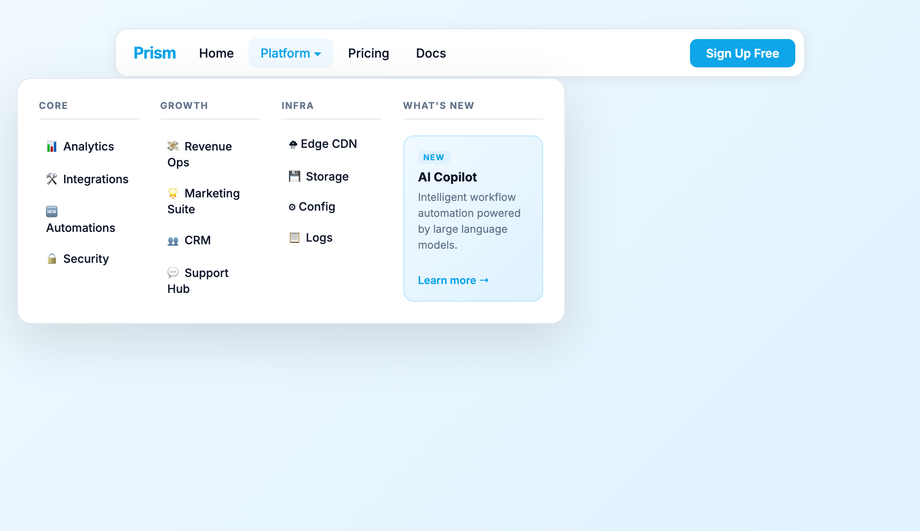
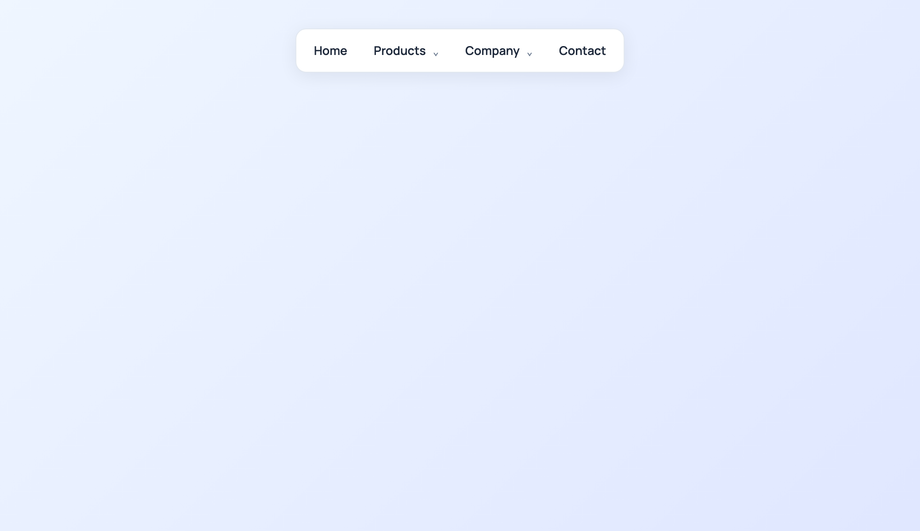
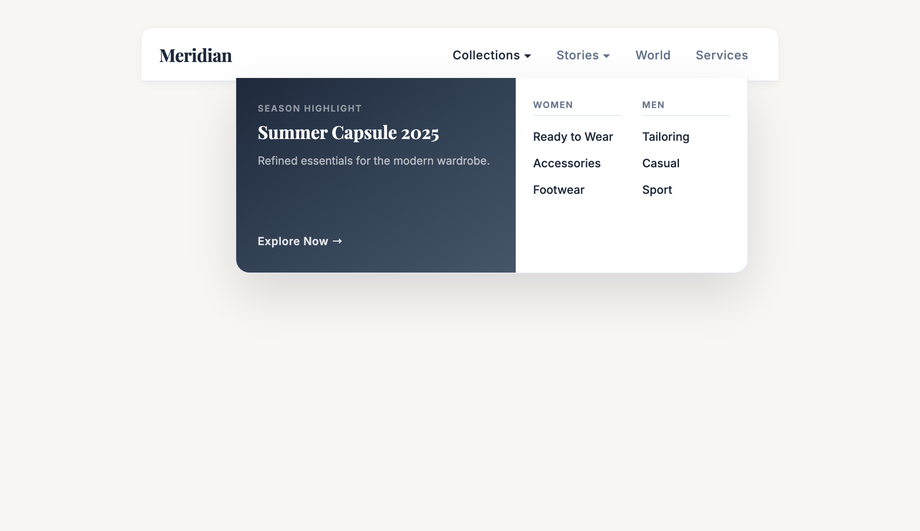
A full-width mega menu that spans the entire nav bar and organizes links into a multi-column CSS Grid layout with section headings and featured content.
A fully CSS-only dropdown built on the native HTML details/summary element, styled with custom markers and animated with the [open] attribute selector.
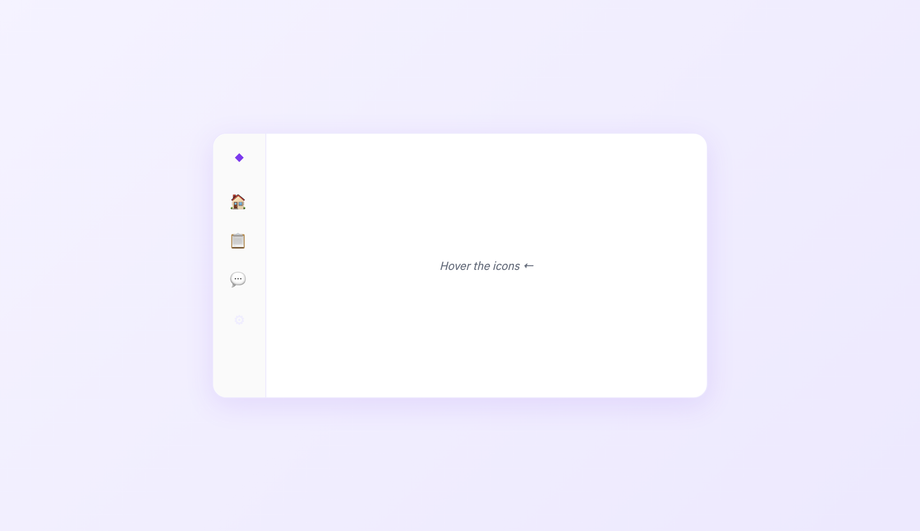
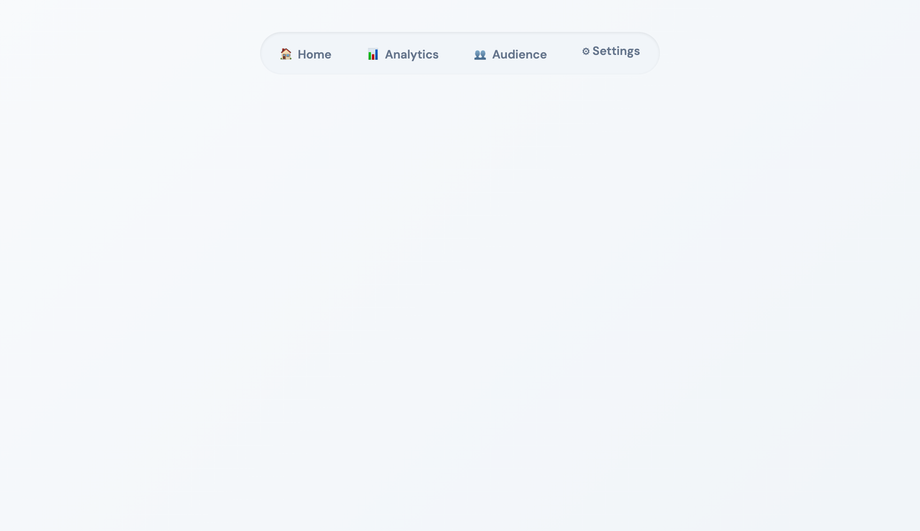
A compact icon-only rail navigation where hovering each icon causes a labeled flyout panel to slide in from the right — a common pattern for collapsed sidebars.
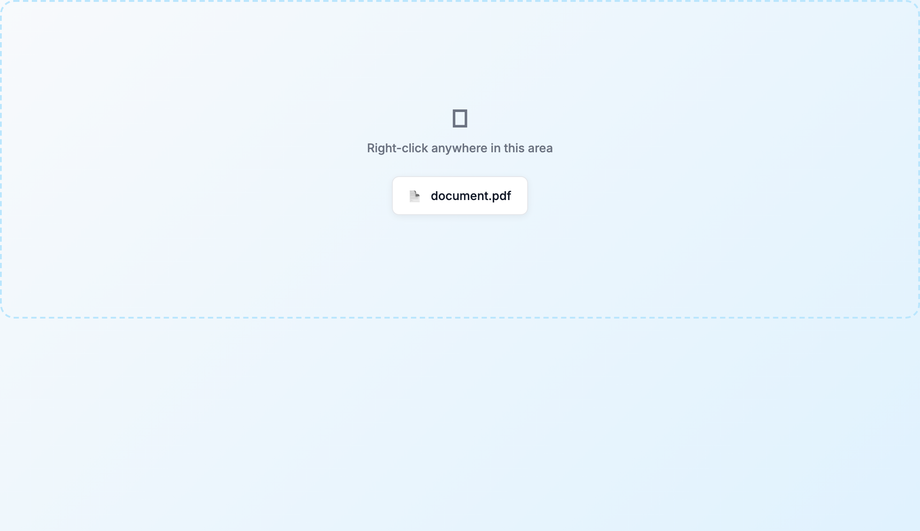
A custom right-click context menu that appears at the exact cursor position on contextmenu event, with smooth CSS entrance animation and click-outside dismissal.
A JS-toggled dropdown where each menu item blurs in from a frosted state, with per-item transition delays applied programmatically for a cinematic cascade.
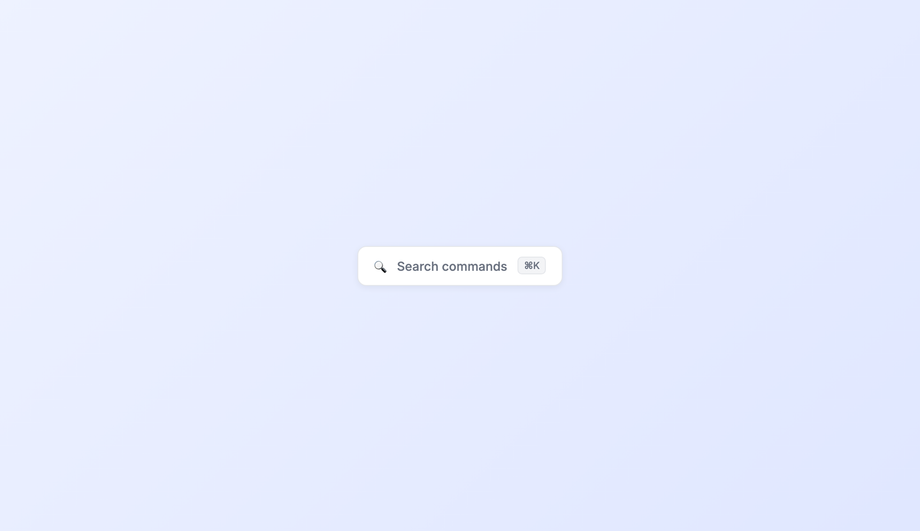
A Spotlight/Linear-style command palette that filters a list of commands in real time as you type, with keyboard navigation and highlighted match text.
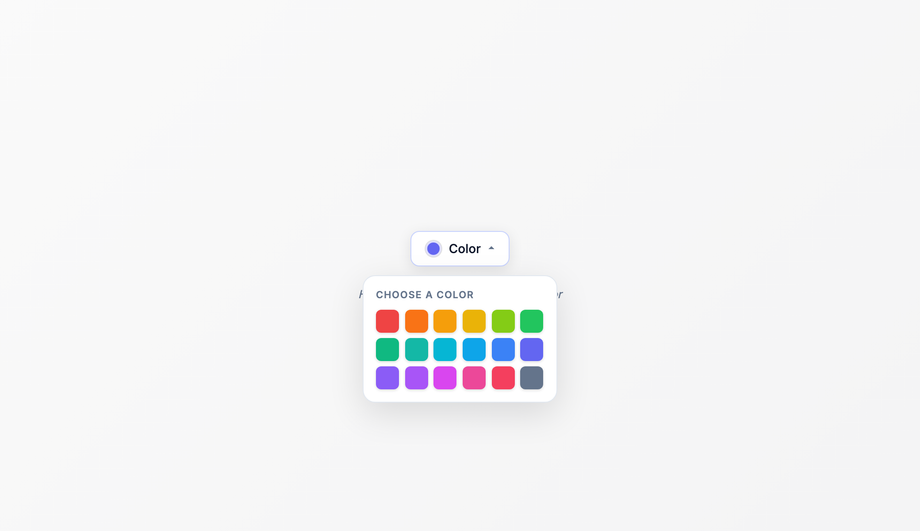
A fully custom replacement for the native HTML select element, with animated option reveal, keyboard support, and a value display that updates on selection.
What is a CSS dropdown menu and which technique should I use to make one?
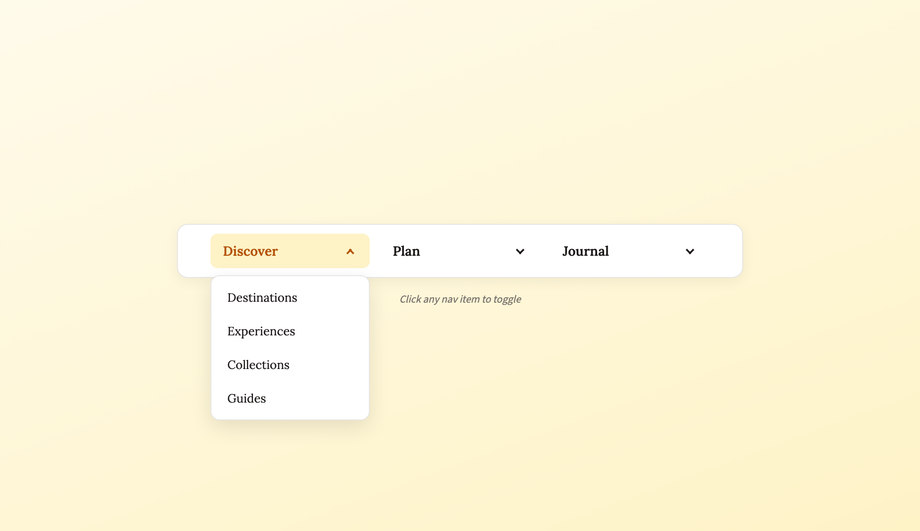
A CSS dropdown menu reveals a hidden panel of links, actions, or content when a user clicks or hovers a trigger — the most-used disclosure pattern on the web. There are four canonical pure-CSS techniques, each with its own trade-offs: <strong>1. <code>:hover</code> only</strong> — the dropdown opens on mouse hover, closes when the cursor leaves. Simplest, but ZERO accessibility (no keyboard support, no touch support, no screen-reader announcement). Don't ship this in production. <strong>2. <code>:focus-within</code></strong> — opens when ANY element inside the dropdown container has focus. Works with hover AND keyboard tab navigation. The modern standard for trigger + panel patterns. <strong>3. Checkbox-hack</strong> — a hidden <code><input type='checkbox'></code> whose <code>:checked</code> state drives CSS sibling selectors (<code>~</code>, <code>+</code>). Works for click toggles without JavaScript; common for mobile hamburger menus and disclosure widgets. <strong>4. Native <code><details></code> / <code><summary></code></strong> — the HTML disclosure element. Browser-native, keyboard-accessible by default, screen-reader-friendly, persists state via the <code>open</code> attribute. Modern browsers (Chrome 117+, Safari 17+) support <code>::details-content</code> for animating the panel. Demos #01–#15 in this collection cover all four pure-CSS techniques; demos #16–#22 add JavaScript for patterns that genuinely require it (focus trap, command palette search, autocomplete, right-click context menu).
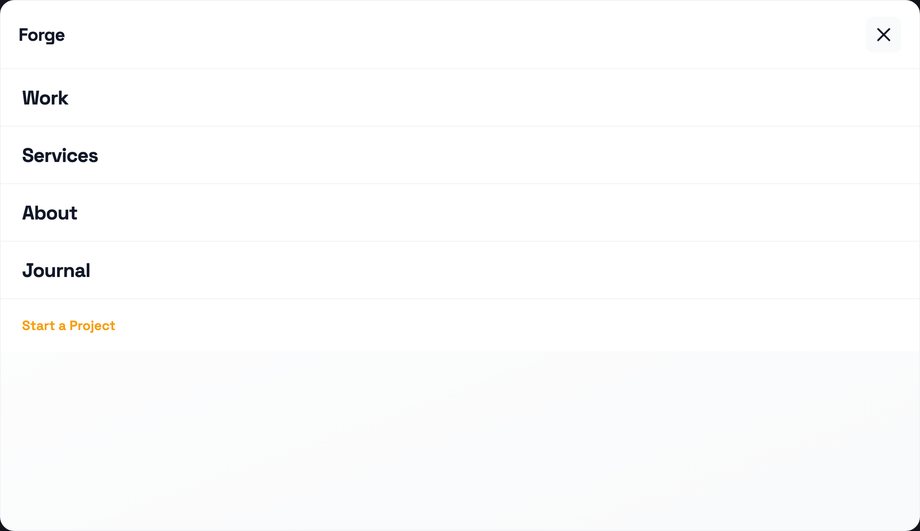
Which dropdown pattern should I pick for my use case?
Decision rule by intent. <strong>Top navigation dropdown (account menu, products list)</strong>: Demo #01 (Slide-Down Fade), Demo #05 (Glassmorphism Float Panel), or Demo #08 (Underline Nav Fade Panel). <strong>Mega menu for e-commerce / docs / large product catalogs</strong>: Demo #07 (Mega Menu Grid), Demo #13 (Split-Screen Mega Menu) — both pure CSS, no JavaScript. <strong>Mobile nav</strong>: Demo #10 (Checkbox-Hack Mobile Nav) — zero-JS toggleable drawer. <strong>Custom <code><select></code> replacement</strong>: Demo #15 (Color Swatch Picker) — the canonical native-select alternative for visual choices that <code><option></code> can't render. <strong>Multi-level / nested nav (admin / sidebar with submenus)</strong>: Demo #11 (Nested Multi-Level), Demo #12 (Icon Sidebar Flyout). <strong>Right-click custom menu (whiteboard apps, file managers, code editors)</strong>: Demo #16 (Context Menu Right-Click). <strong>Cmd-K command palette (Linear, Vercel, Notion pattern)</strong>: Demo #19 (Command Palette Search). <strong>Search-as-you-type combobox (Google, Algolia DocSearch)</strong>: Demo #20 (Autocomplete Suggestion). <strong>Tag picker / multi-select (Notion properties, GitHub labels)</strong>: Demo #22 (Multi-Select Chip). <strong>Native HTML where possible</strong>: Demo #09 (<code><details></code>) — the most accessible, lowest-cost option for any disclosure that doesn't need custom positioning. Every demo uses scoped <code>.dd-NN</code> class names so you can drop multiple onto the same page without conflicts.
How do I make a CSS dropdown WCAG-accessible? What ARIA do I need?
A truly accessible dropdown needs SEVEN things, and most tutorials ship only 2-3. <strong>1. Semantic trigger</strong>: use a real <code><button type='button'></code> (not a <code><div onclick></code>). The button is keyboard-focusable by default, announces as 'button' to screen readers, and gets <code>:focus-visible</code> rings for free. <strong>2. <code>aria-expanded='true|false'</code></strong> on the trigger — announces whether the dropdown is open. Toggle it as state changes. <strong>3. <code>aria-haspopup='menu' | 'listbox' | 'tree' | 'dialog'</code></strong> — tells assistive tech what kind of panel will appear. Use <code>menu</code> for action lists, <code>listbox</code> for single-select pickers, <code>tree</code> for multi-level, <code>dialog</code> for modal panels. <strong>4. <code>aria-controls='panel-id'</code></strong> — links trigger to its panel by ID so screen readers can navigate them as a pair. <strong>5. Keyboard interaction</strong>: <code>Space</code> / <code>Enter</code> opens the dropdown, <code>Escape</code> closes it and returns focus to the trigger, <code>ArrowDown</code> / <code>ArrowUp</code> moves through menu items (roving tabindex pattern), <code>Home</code> / <code>End</code> jumps to first / last, <code>Tab</code> closes the menu and moves to next focusable element. <strong>6. Focus management</strong>: when the menu opens, move focus to the first item (or the previously-selected item for listbox); when it closes via Escape, return focus to the trigger; don't trap focus inside (Tab should escape) unless it's a modal dialog. <strong>7. <code>role='menu'</code> + <code>role='menuitem'</code></strong> on the panel + items so the WAI-ARIA Authoring Practices menu pattern works. Demo #17 (Keyboard Accessible Dropdown) ships all seven correctly. Regulatory frameworks: <strong>WCAG 2.2</strong>, <strong>EU EAA</strong> (June 2025), <strong>US Section 508</strong>, <strong>Canada ACA</strong>, <strong>UK Equality Act</strong>.
Pure CSS vs JavaScript dropdown — when do I actually need JS?
Pure CSS handles MORE patterns than people realize. <strong>Pure-CSS works for</strong>: hover-or-focus dropdowns (<code>:hover</code> + <code>:focus-within</code> on the parent), click-toggle dropdowns (checkbox-hack with hidden <code><input></code> + <code>:checked</code> sibling selectors), native disclosure (<code><details></code> / <code><summary></code>), multi-level fly-outs (nested <code>:hover</code> + <code>:focus-within</code>), color/swatch pickers (radio-button state machines), mobile drawers (checkbox-hack), and most navigation dropdowns. <strong>JavaScript is required for</strong>: keyboard-accessible roving tabindex (Demo #17 — pure CSS can't programmatically move focus between menu items in response to arrow keys), focus trap inside modal dropdowns, Escape-key dismissal that returns focus to the trigger, click-outside-to-close (Demo #21), right-click context menus (Demo #16 — needs <code>preventDefault()</code> on the <code>contextmenu</code> event), command-palette search filtering (Demo #19 — needs <code>input</code> event + array filter), autocomplete suggestion lists fetched from a server (Demo #20), and multi-select chip dropdowns where each pick adds/removes an item (Demo #22). The rule: if your dropdown needs to UPDATE its content based on user input (search, filter, async fetch), or needs PROGRAMMATIC focus management (arrow keys, focus trap, focus return), use JavaScript. Otherwise pure CSS works fine and ships with zero bundle cost. <strong>Modern alternative</strong>: the <a href="https://developer.mozilla.org/en-US/docs/Web/API/Popover_API">HTML Popover API</a> (Chrome 114+, Safari 17+, Firefox 125+) gives you <code>popovertarget</code> + <code>popover='auto'</code> for click-toggle dropdowns with NATIVE focus management, click-outside-close, and Escape handling — zero JavaScript needed for a complete a11y-compliant dropdown.
How does this compare to Bootstrap, Tailwind, shadcn/ui, MUI, Chakra, Radix UI dropdowns?
<strong>Bootstrap 5</strong>: ships <code>.dropdown</code> + <code>.dropdown-menu</code> with the <code>data-bs-toggle='dropdown'</code> JS-driven toggle. Functional, but Bootstrap's bundle is ~75KB for the full JS — overkill for one dropdown. <strong>Tailwind CSS</strong>: no first-class dropdown component; you compose with <code>group</code> + <code>group-hover:block</code> + <code>focus-within:block</code> on the parent + arbitrary class utilities on the panel. Works but verbose. <strong>shadcn/ui</strong> (free, React + Radix Primitives): ships <code><DropdownMenu></code> built on Radix UI Menu primitive — accessibility-complete out of the box (keyboard, ARIA, focus management). Best React option but adds Radix + Framer Motion dependencies (~50KB). <strong>Material UI / MUI</strong> (~95KB bundle): ships <code><Menu></code> + <code><MenuItem></code> with Material aesthetics. <strong>Chakra UI</strong>: <code><Menu></code> as a first-class composable component. <strong>Ant Design / Mantine</strong>: similar dropdown / select / autocomplete primitives. <strong>HeadlessUI</strong>: unstyled accessible primitives, you bring the CSS. <strong>Radix UI</strong> directly: same as HeadlessUI but Radix is what shadcn wraps. <strong>This collection vs all of the above</strong>: 15 demos ship as PURE CSS (zero JS, zero framework, zero npm package) — the same dropdown patterns as Bootstrap/Tailwind/etc but with no bundle cost. For accessibility-critical apps where you need full ARIA + keyboard + focus management, use Radix or shadcn. For marketing pages and content sites where a hover/focus-within dropdown is enough, the pure-CSS demos here win on Core Web Vitals (FCP / LCP / INP) by shipping zero JavaScript.
How do I keep my dropdown from being clipped by overflow: hidden on a parent?
This is the #1 dropdown bug in production — the menu opens correctly but gets clipped where the parent has <code>overflow: hidden</code> or <code>overflow: scroll</code>. Three fixes, listed by preference. <strong>1. HTML Popover API (modern, recommended)</strong>: add <code>popover='auto'</code> to the panel and <code>popovertarget='panel-id'</code> to the trigger. Popovers render in the <strong>top layer</strong> — they ignore EVERY parent's overflow / clip / transform / z-index context, always render on top of all content, and have built-in click-outside-close + Escape-key dismissal. Chrome 114+, Safari 17+, Firefox 125+. The future-default for new dropdowns. <strong>2. <code>position: fixed</code> on the panel</strong>: removes the panel from its containing block context, positioning it relative to the viewport instead. Combine with JavaScript to set <code>top</code> / <code>left</code> from <code>getBoundingClientRect()</code> of the trigger on every open + resize + scroll. Floating UI library (~5KB) wraps this pattern reliably with collision detection. <strong>3. CSS Anchor Positioning (newest)</strong>: <code>anchor-name: --my-trigger</code> on the trigger + <code>position-anchor: --my-trigger</code> + <code>top: anchor(bottom)</code> on the panel pins them together declaratively. Chrome 125+, Safari TP, Firefox flagged. Combine with Popover API for the cleanest possible recipe. <strong>4. Avoid the trap entirely</strong>: don't set <code>overflow: hidden</code> on ancestors of a dropdown unless you genuinely need it. <code>overflow: hidden</code> is often added casually to hide a single scrollbar or fix a layout glitch — but it cascades to clip every descendant dropdown / tooltip / modal.
Why does my dropdown cause cumulative layout shift (CLS) when it opens?
CLS is one of three Core Web Vitals — Google measures it on every Lighthouse / PageSpeed Insights audit. Dropdowns cause CLS three ways: <strong>1. The dropdown panel is in normal document flow</strong> — when it opens, it pushes content below it down. Fix: position the panel <code>absolute</code> or <code>fixed</code> (or use Popover API) so it floats above content WITHOUT affecting layout. <strong>2. <code>display: none → block</code> animation</strong> — when the panel switches from <code>display: none</code> to <code>display: block</code>, layout recalculates and shifts. Fix: keep the panel in the DOM with <code>opacity: 0; pointer-events: none; visibility: hidden</code> at rest, then transition to <code>opacity: 1; pointer-events: auto; visibility: visible</code> on open. Layout doesn't change because the panel was already there. The <code>visibility</code> swap is required to remove the panel from the accessibility tree when closed. <strong>3. Async content (autocomplete suggestions, async-loaded items)</strong> — the panel opens at one size, then expands as items load, pushing surrounding content. Fix: set a reasonable <code>min-height</code> on the panel + show a skeleton/spinner while loading so the size is stable. <strong>4. Late-loading web fonts inside the dropdown</strong> — font swap reflows text, shifting layout. Fix: <code>font-display: optional</code> or <code>font-display: swap</code> with <code>size-adjust</code> in <code>@font-face</code>. Tools: Chrome DevTools Performance Insights (Layout Shift section), Lighthouse, Core Web Vitals report in Google Search Console, WebPageTest, axe DevTools.
What's the best command palette / Cmd-K pattern? (Linear, Vercel, Notion style)
Command palettes — the keyboard-driven action search opened with <code>Cmd-K</code> (Mac) or <code>Ctrl-K</code> (Win/Linux) — have become standard in productivity apps: Linear, Notion, Vercel, GitHub, Discord, Raycast. The canonical pattern: <strong>1. Global keyboard shortcut</strong>: <code>document.addEventListener('keydown', e => { if ((e.metaKey || e.ctrlKey) && e.key === 'k') { e.preventDefault(); openPalette(); } })</code>. Mac users press Cmd-K, Windows users Ctrl-K. <strong>2. Modal overlay</strong>: full-screen dim backdrop + centered search input + suggestion list below. <code>role='dialog'</code> with focus trap so Tab cycles within the palette. <strong>3. Search input auto-focus on open</strong>. As user types, filter the action list with array.filter + fuzzy search (Fuse.js is ~10KB or write 30 lines of vanilla fuzzy matching). <strong>4. ArrowDown / ArrowUp navigate</strong> the suggestion list (highlighted with a roving <code>aria-selected='true'</code> and visual styling). Enter activates the highlighted item. Escape closes. <strong>5. Recent commands</strong> shown when search is empty (saved to <code>localStorage</code>). <strong>6. Grouped categories</strong> (e.g. 'Recent', 'Navigation', 'Settings') for discoverability. Demo #19 (Command Palette Search Dropdown) ships this entire pattern in ~80 lines of vanilla JS — no framework, no library. For a production-grade React implementation, <a href="https://cmdk.paco.me/">cmdk</a> (by Paco Coursey, used by Vercel) is the industry standard at ~12KB.
Are these dropdowns Tailwind / shadcn-compatible? How do I drop them into a React app?
Yes — every demo's CSS is portable to any framework. <strong>For Tailwind users</strong>: paste the demo's CSS into your <code>@layer components</code> block, or convert to utility classes using our <a href="/tools/css-to-tailwind-converter/">CSS to Tailwind converter</a>. The hover/focus-within patterns translate directly to Tailwind's <code>group-hover:</code> + <code>group-focus-within:</code> variants. <strong>For shadcn/ui users</strong>: shadcn's <code><DropdownMenu></code> already gives you the accessibility primitives (Radix UI); these demos give you alternative VISUAL designs you can apply to that base structure. Override the default Tailwind classes on <code><DropdownMenuContent></code> + <code><DropdownMenuItem></code> with the CSS from the demo. <strong>For React without a framework</strong>: copy the HTML structure into JSX, copy the CSS into a CSS module (<code>.module.css</code>) or styled-components / Emotion template literal, copy the JS into a <code>useEffect</code> hook with proper cleanup. <strong>For Vue 3</strong>: copy HTML to <code><template></code>, CSS to <code><style scoped></code>, JS to <code>onMounted</code> setup hook. <strong>For Svelte / SvelteKit</strong>: identical structure; CSS goes in <code><style></code> with Svelte's auto-scoping. <strong>For Astro</strong>: copy directly — Astro components support all three (HTML + scoped CSS + frontmatter script). The pure-CSS demos work in ANY framework because they have zero framework dependencies; the JS demos require translating the vanilla <code>document.querySelector</code> calls to your framework's ref system, but the LOGIC is unchanged.
Are these dropdowns free, accessible, and how do I attribute them?
Yes — all 22 dropdown designs are <strong>MIT licensed</strong> and free for personal and commercial use, including client projects, SaaS products, design systems, and open-source libraries. The MIT license requires only that you keep the copyright notice if you redistribute the source code as-is; in shipped production HTML / CSS that you've adapted, no visible attribution is needed. If you ship one as part of an open-source UI library, a one-line credit pointing to https://codefronts.com is appreciated but not legally required. <strong>Accessibility</strong>: pure-CSS demos honour <code>prefers-reduced-motion: reduce</code> and use semantic HTML (real <code><button></code>, real <code><details></code>, real form controls). JS-enhanced demos (#16–#22) include the WCAG 2.2 a11y patterns: <code>aria-expanded</code>, <code>aria-haspopup</code>, <code>aria-controls</code>, keyboard navigation (Arrow / Enter / Space / Escape), focus management, screen-reader announcements. Verify your specific use case with <strong>axe DevTools</strong>, <strong>Lighthouse</strong>, <strong>WAVE</strong>, <strong>NVDA</strong> / <strong>VoiceOver</strong> screen reader testing before shipping to EU EAA / US Section 508 / Canada ACA / UK Equality Act audits — the demos are AA-compliant by default but real-world a11y depends on the context you embed them in.